Reporting Without the Rework
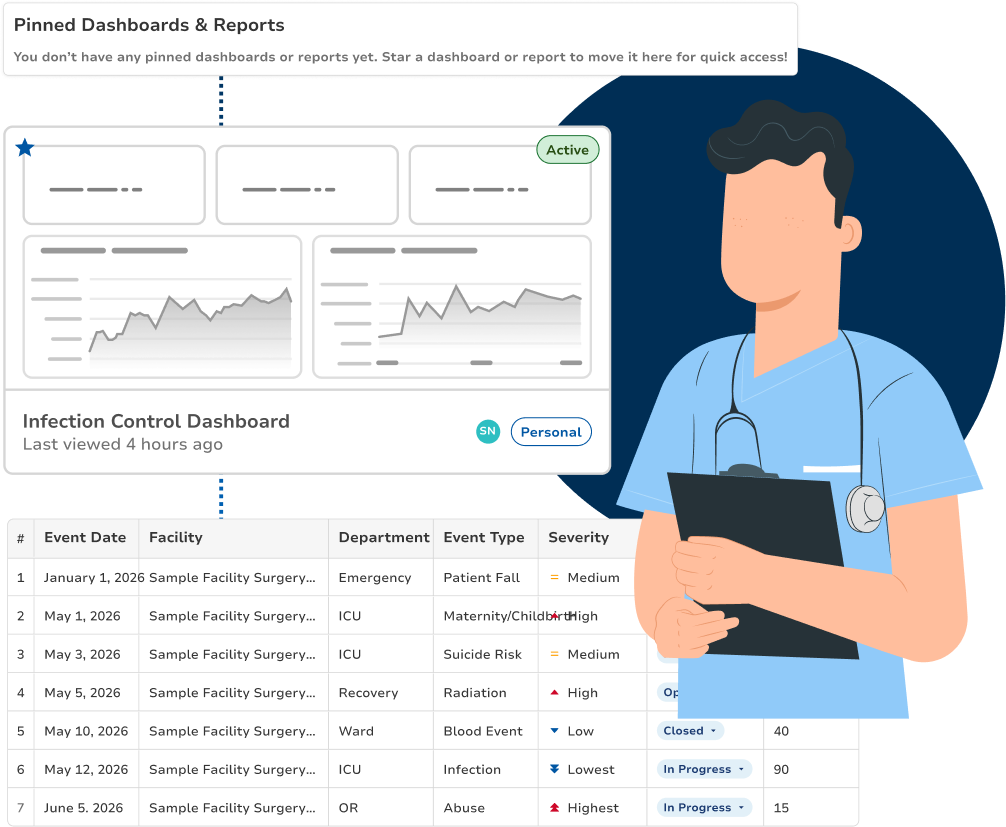
Your board packet shouldn't start with a CSV export and end at midnight. Build it once in Relevance BI, then chart it the way the question needs, pin it to a dashboard your team watches all quarter, and click any number to reach the records underneath it. Send the same figures out as a file when somebody asks for one.
A Custom Report, Built by You
Relevance BI's report builder is a structured reporting tool, not a spreadsheet with a nicer skin. You choose the fields, the filters, the grouping and the layout, then read the result as a chart, pin it to a dashboard, or send it as a file. The platform produces the same numbers on demand, every time.
Choose Your Fields
Pick the columns you actually need from any module, finding, event, CAP, policy, vendor, audit, and leave the rest out. The report carries the fields your reader asked for, not everything the system happens to store.
Filter and Scope
Narrow by facility, department, date range, severity, standard or owner. Filters compose, so "open CAPs in the ICU cited under 42 CFR §482.21 in the last two quarters" is one report, not four exports you reconcile by hand.
Sort and Group
Group rows by department, standard, owner or month, then sort within each group. The structure a reader needs to follow the story is part of the report definition, not something you reapply in Excel every time.
Aggregate the Numbers
Count, sum, average or take a median across any grouping, findings per department, average days to close a CAP, recurrence per standard. The aggregation is computed by the platform, so two people running it get the same number.
Lay It Out Your Way
Column order, headers, titles and date grain are yours to set. Build the layout your board, your accreditor or your state health department already expects, so nobody has to reformat it after you send it.
Export and Re-Run
Preview the extraction, export it to Excel, and save the definition. Next cycle, you run the saved report instead of rebuilding it, same fields, same filters, current data.
Related
A report is what you send. A dashboard is what you watch. Both come out of the same builder, against the same data.
Start From a Template, or Start From Nothing
Open a dashboard that already tracks the standards you're surveyed against, or build your own from a blank canvas. Either way you are configuring a chart, not writing a query, and the data underneath is live platform data.
Prebuilt for Your Standards
Dashboards ship pre-aligned to DNV, CMS and NIAHO, so a new site has something real on screen on day one instead of a blank canvas and a setup project. Adjust them or use them as they are.
Widgets to Visualize Any Problem
Bar, stacked and grouped bar, line and area, pie and donut, heatmap, table, KPI card, gauge, etc. Pick the shape that fits the question, a count by department is a bar, a rate over time is a line.
Drag It Onto the Canvas
Build a dashboard by dragging a widget onto a twelve-column grid and configuring it in a step-by-step panel: field and aggregation, group by, stack by, filters, date range, title. Then save.
Filter Without Waiting
Slicers and filter bars sit on the canvas as widgets. Change a facility, a department or a date range and every chart on the page updates immediately, because the filtering happens in your browser, not in a queue.
KPIs With a Target on Them
Put your defined KPIs on a KPI card or a gauge, CAP closure rate, days to close, recurrence, overdue findings, and draw the target line across the chart so a miss is visible rather than calculated.
One Facility or All of Them
A system-level dashboard carries a facility filter, so the same view serves a single hospital, a region, or the whole system without anyone rebuilding it per site.
Add the Line That Explains the Chart
A Complete Statistical View
Interpretation, Not Recalculation
Select any chart you have already built, open Insights, and add a target, a trend, a moving average or an average line. The overlay is drawn on top of the data you are already looking at, it changes how the chart reads, never what it contains.
Target Line
Draw your target across the chart as a labeled reference line, a CAP closure rate you committed to, a threshold your quality plan sets. The gap between the bar and the line is the conversation.
Trend Line
Fit a straight trend through a time series so the direction is visible under the month-to-month noise. Needs at least three plotted points, and shows a linear fit only, no invented confidence band.
Moving Average
Smooth a series over three, six or twelve periods. A missing period stays missing rather than being counted as zero, because an absent value is not the same as no findings.
Average or Median Line
Drop an average or median line computed from the values on screen, so every bar can be read against the middle instead of against the tallest one.
Drill-Down: From the Dashboard to the Root Cause
The system view
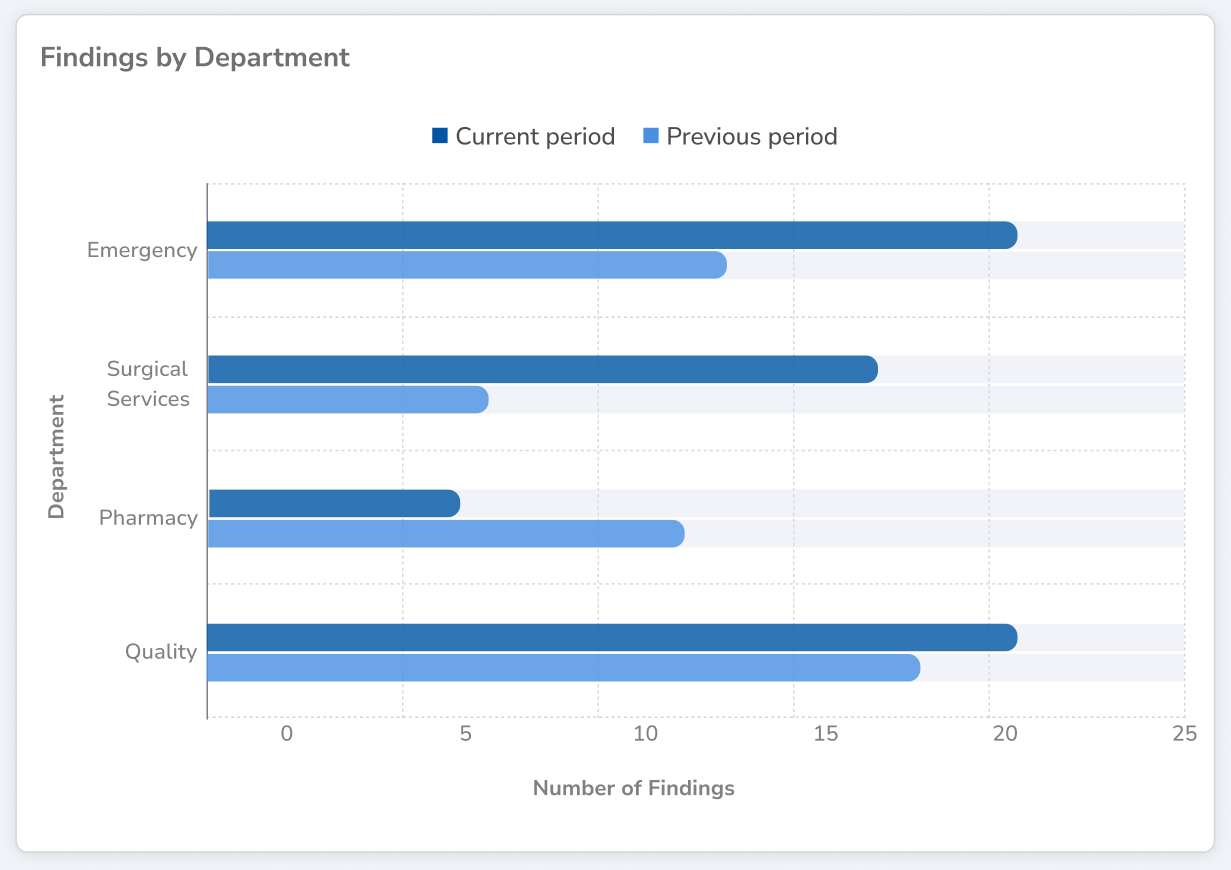
You open the dashboard you review every Monday. Findings by department, last ninety days. One bar is taller than it was last month, and you don't yet know why.
The root cause
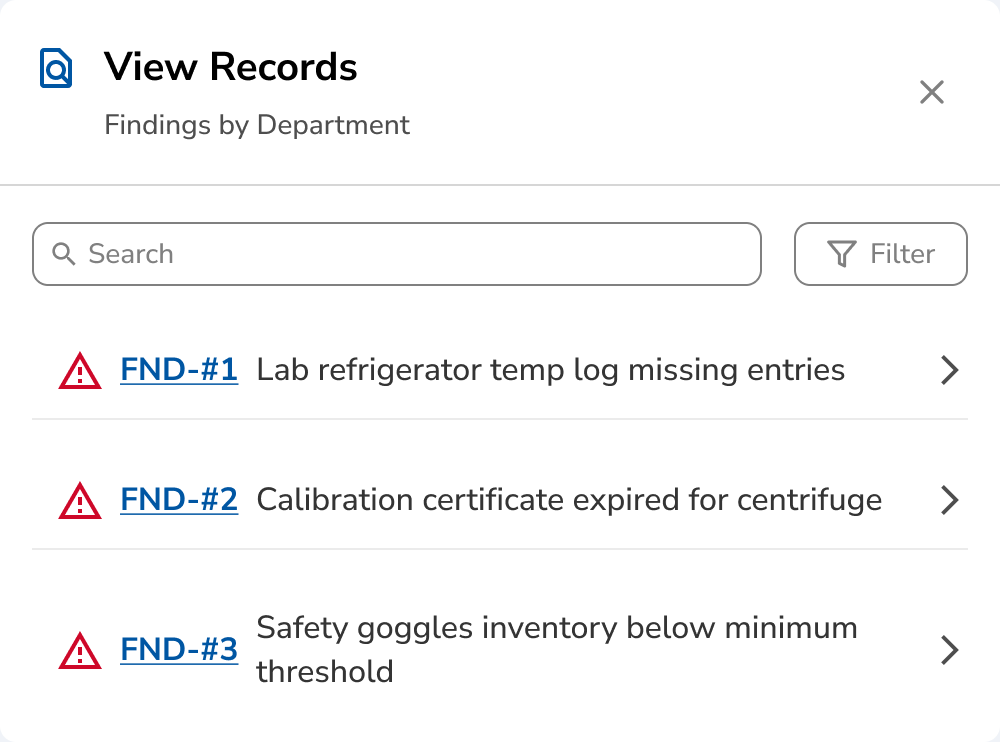
You open the records behind that bar. Three of the five findings cite the same standard, and two of them are recurrences of a CAP that closed in March. That's not a reporting problem any more. It's a finding.
Related
A number tells you something changed. The records underneath it tell you what caused it and what to do about it.
How Clara AI Enhances
Reporting and Dashboards
Describe the extraction or the view you need and Clara assembles it, fields, filters, grouping, layout, as something you can inspect before you run it. You review every column and every filter, adjust anything that isn't right, and decide when it goes out. Clara drafts; you sign off.

CLARA
Clarity in complianceClara reads
Clara proposes
You inspect every field and filter in the builder before the report runs, and the previous version stays available.